As governments consider new uses of technology, whether that be sensors on taxi cabs, police body cameras, or gunshot detectors in public places, this raises issues around surveillance of vulnerable populations, unintended consequences, and potential misuse. There are several principles to keep in mind in how these decisions can be made in a healthier and more responsible manner. It can be tempting to reduce debates about government adoption of technology into binary for/against narratives, but that fails to capture many crucial and nuanced aspects of these decisions.
We recently hosted the Tech Policy Workshop at the USF Center for Applied Data Ethics. One of the themes was how governments can promote the responsible use of technology. Here I will share some key recommendations that came out of these discussions.
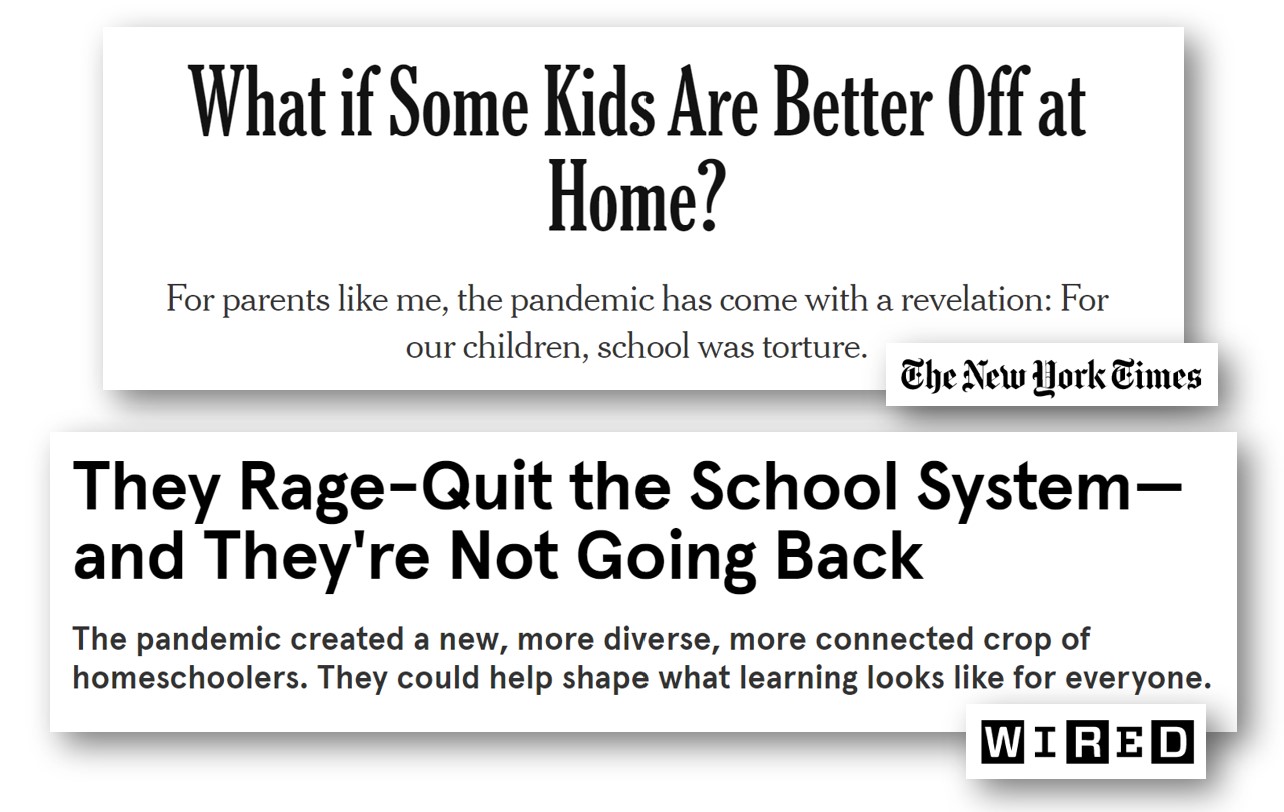
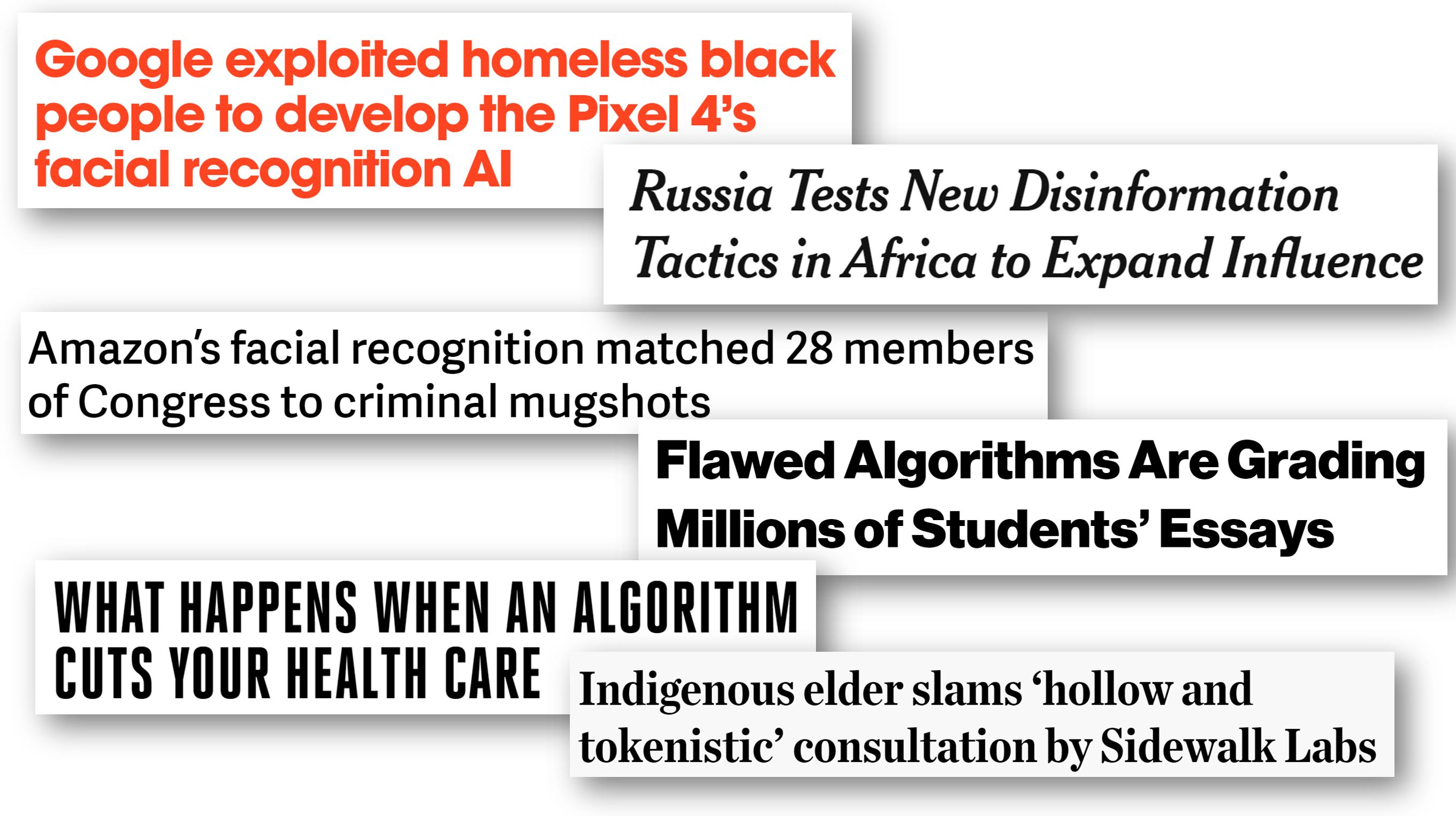
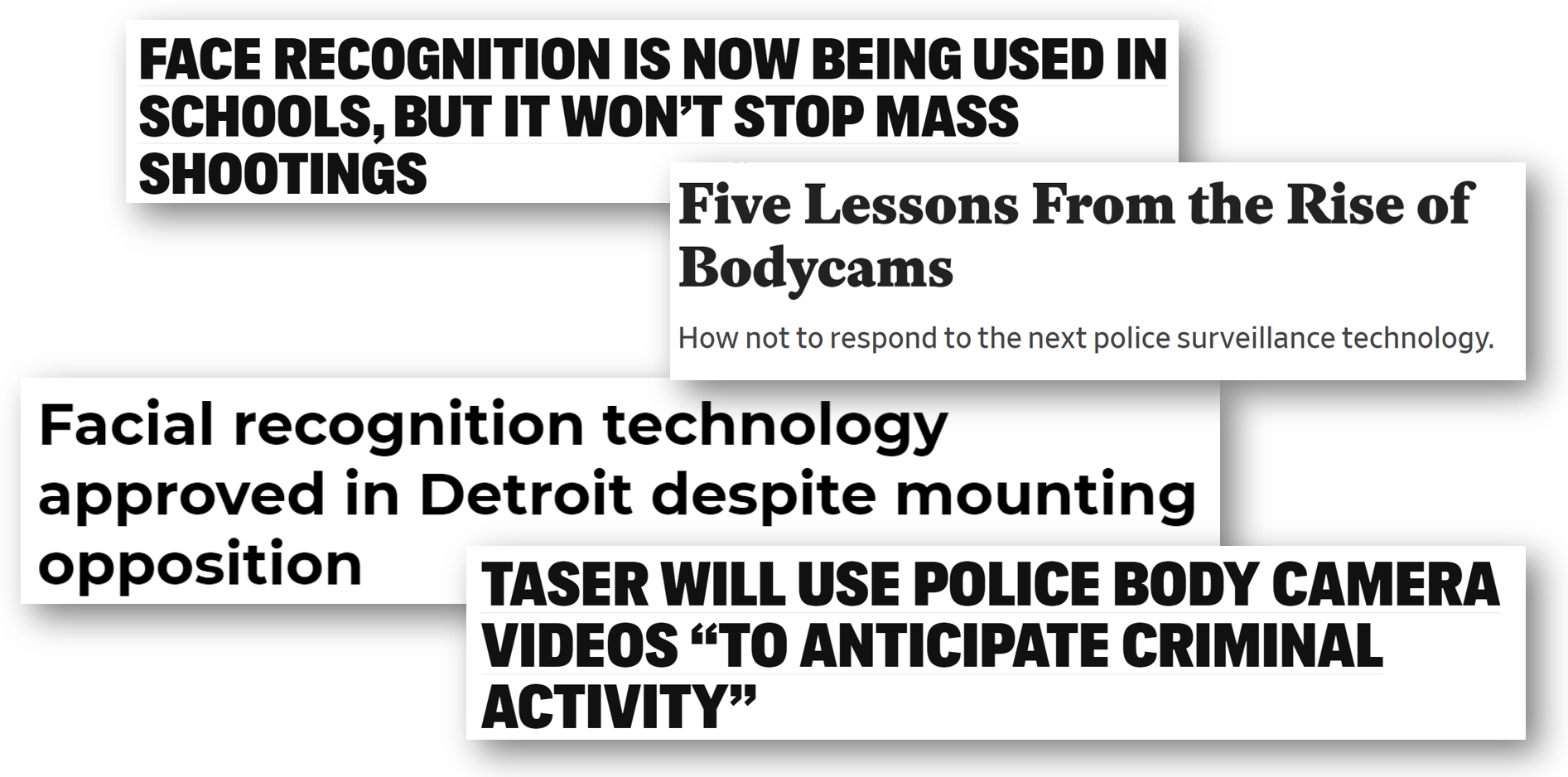
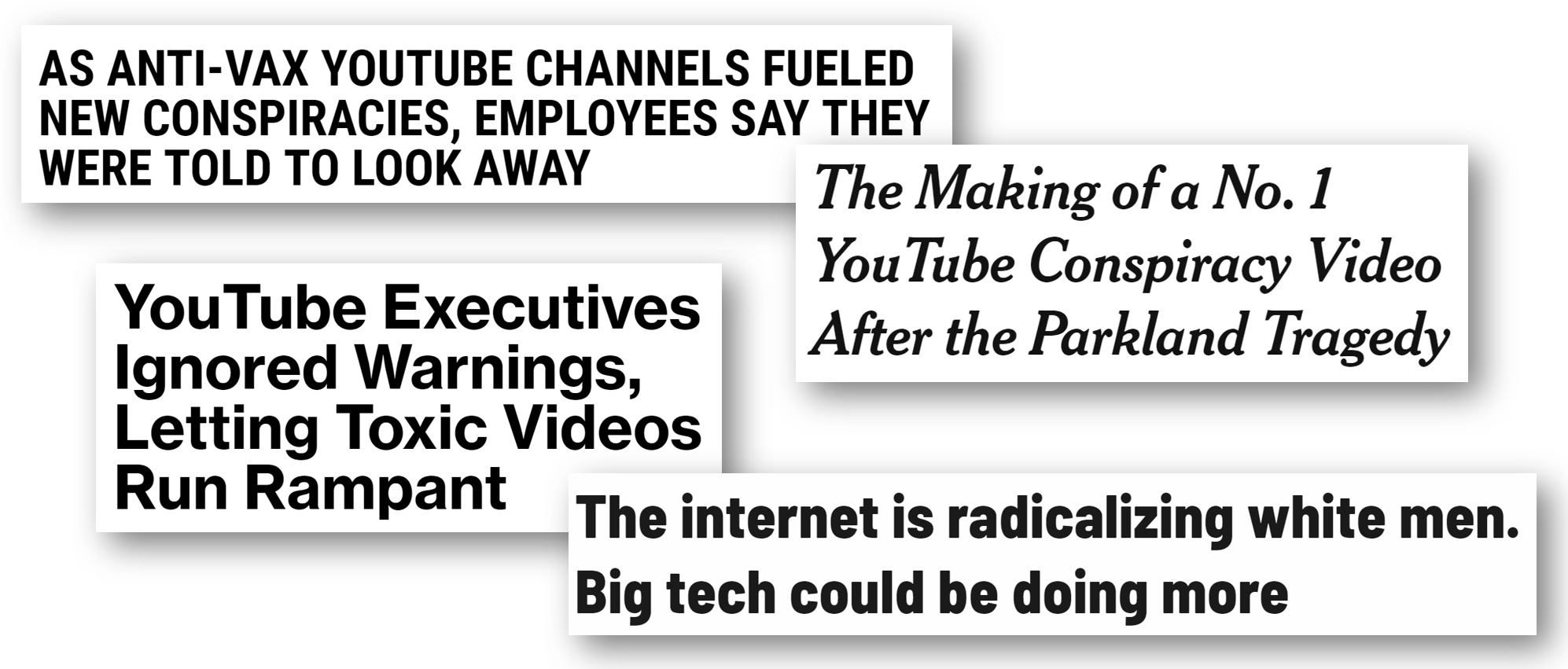
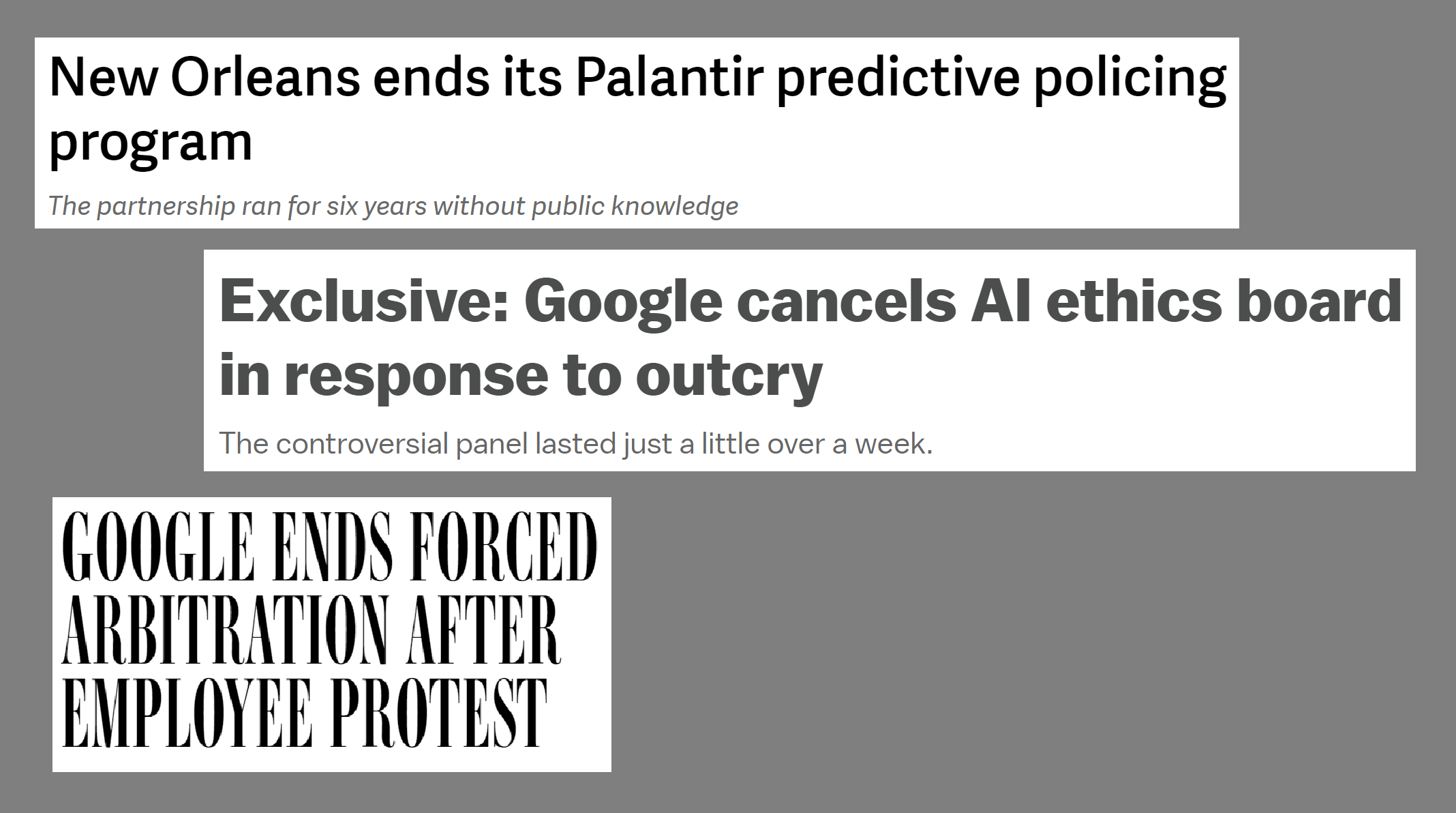
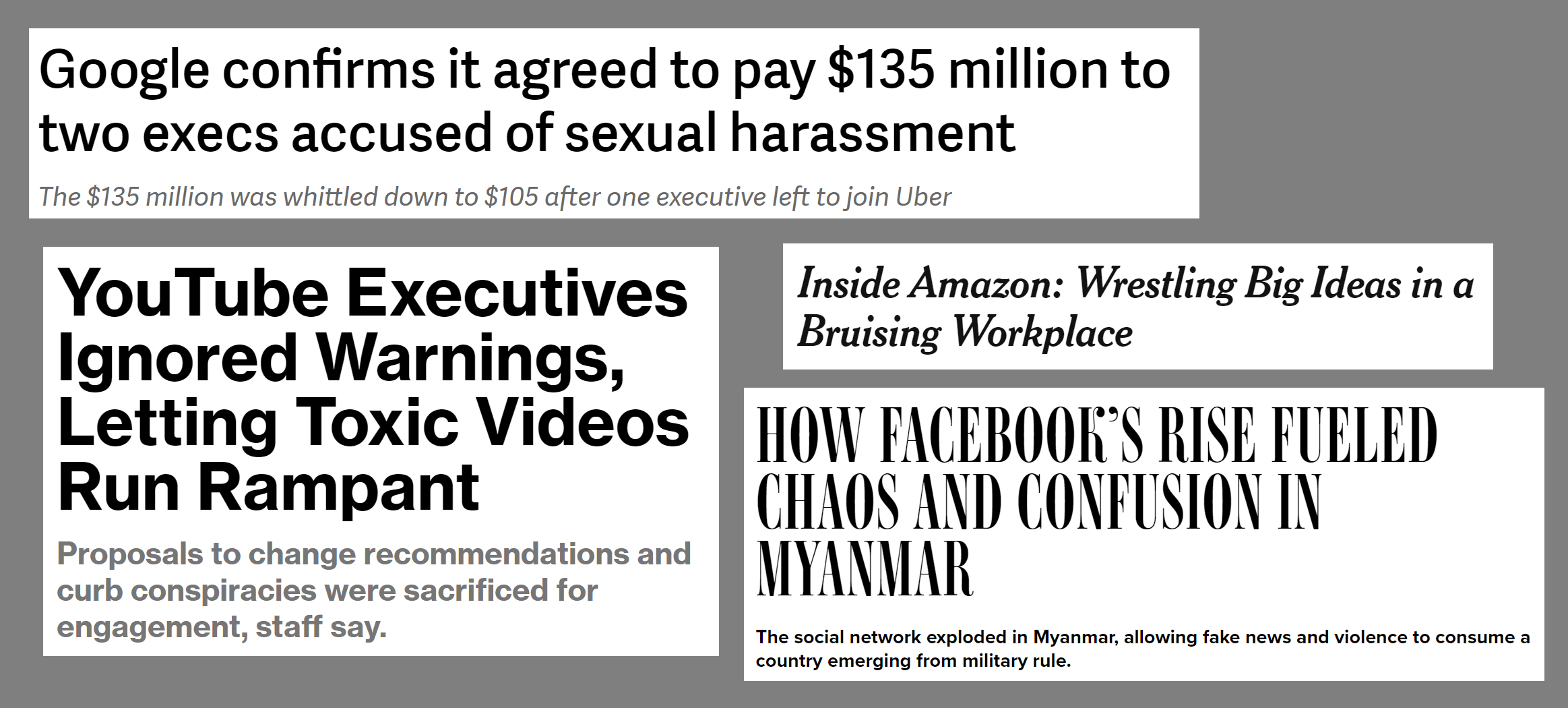
Headlines of articles related to government use of technology
Listen to local communities
There aren’t universal ethical answers that will make sense in every country and culture. Therefore, decisions on technology use should be made in close consultation with local communities. In 2013, Oakland announced plans for a new Domain Awareness Center (DAC), which would implement over 700 cameras throughout schools and public housing, facial recognition software, automated license plate readers (ALPRs), storage capacity for 300 terabytes of data, and a centralized facility with live monitroy. Brian Hofer was an Oakland resident who had never set foot in City Hall prior to this, but he was alarmed by the plans, particularly in light of Edward Snowden’s revelations, which had been released the same month. Together with other citizens and privacy advocates, Hofer was concerned about the intrusiveness of the plans and began attending city council meetings. There were a number of reasons for their concerns, including the discovery that city staff had been discussing using DAC to surveil protests and demonstrations. Through the advocacy of local citizens, the plans were dramatically scaled back and the Oakland Privacy Commission was formed, which continues to provide valuable insight into potential government decisions and purchases.
Sadly, the concerns of local communities are often overridden, in part due to corporate interests and racist stereotypes. For instance, in Detroit, a city that is 79% Black, citizens protested against police use of facial recognition. Yet the city council ended up voting to okay its use, in violation of the police department’s own policy. In contrast, the demographics of cities that have been successful at banning facial recognition are quite different: San Francisco is only 5% Black and Oakland is 25% Black (credit to Tawana Petty for highlighting these statistics). The racial composition of cities is a significant factor in where and how technology is deployed and used. In another sobering example of the significance of race, Baltimore Police Department used facial recognition to identify people protesting the death of Freddie Gray, a Black man killed in police custody.
Beware how NDAs obscure public sector process and law
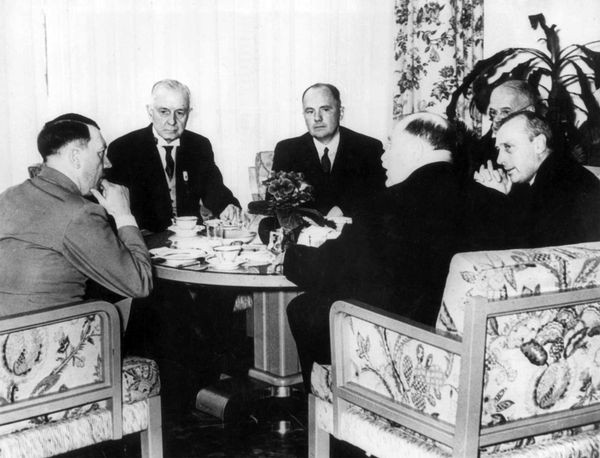
In order for citizens to have a voice in the use of technology by their local governments, the first step is that they need to know what technology is being used. Unfortunately, many local governments are shrouded in secrecy on this topic, and they often sign overly strict non-disclosure agreements (NDAs), hiding even the existence of the technology they use. In 2017 New York City passed a measure appointing a task force on Automated Decision Systems to investigate the fairness of software being used by the city and make policy recommendations. However, members of the task force were repeatedly denied their requests for even a basic list of automated systems already in use, with the city claiming that this is proprietary information. When the city released the final report from the commission, many members dissented with it and released their own shadow report in tandem. Meredith Whittaker, a member of the task force and founder of AI Now Institute, described the city’s failure to share relevant information in what could have been a groundbreaking project, “It’s a waste, really. This is a sad precedent.”
The law typically develops through lots of cases over time, explained Elizabeth Joh. However, NDAs often prevent citizens from finding out that a particular technology even exists, much less how it is being used in their city. For instance, cell-site simulators (often referred to as sting-rays), which help police locate a person’s cell phone, were protected by particularly strong NDAs, in which police had to agree that it was better to drop a case than to reveal that a cell-site simulator had been used in apprehending the suspect. How can our law develop when such important details remain hidden? The traditional process of developing and refining our legal system breaks down. “Typically we think we have oversight into what police can do,” Joh has said previously. “Now we have third-party intermediary, they have a kind of privacy shield, they’re not subject to state public record laws, and they have departments sign contracts that they are going to keep this secret.”
Security is not the same as safety
Project Green Light is a public-private partnership in Detroit in which high-definition surveillance cameras outside business stream live data to police and are prioritized by police over non-participants. Over 500 businesses are a part of it. This is the largest experiment of facial recognition on a concentrated group of Black people (700,000) to date. Black people are disproportionately likely to be stopped by police (even though when police search Black, Latino and Native American people, they are less likely to find drugs, weapons or other contraband compared to when they search white people), disproportionately likely to be written up on minor infractions, and thus disproportionately likely to have their faces appear in police face databases (which are unregulated and not audited for mistakes). This is particularly concerning when combined with knowledge of America’s long history of surveilling and abusing Black communities. While the aims of the program are ostensibly to make Detroit safer, we have to ask, “Safer FOR who? And safer FROM whom?”
Graphic about Detroit's Project Greenlight, originally from data.detroitmi.gov and shared in Detroit Riverwise Magazine
Tawana Petty is a poet and social justice organizer who was born and raised in Detroit. She serves as Director of Data Justice Programming for the Detroit Community Technology Project and co-leads the Our Data Bodies Project. At the CADE Tech Policy Workshop she shared how Project Green Light makes her feel less safe, and gave a more hopeful example of how to increase safety: give people chairs to sit on their front porches and encourage them to spend more time outside talking with their neighbors. Myrtle Thompson-Curtis wrote about the origins of the idea: in 1980 in Milwaukee “a group of young African Americans remembered how elders would sit on the front porch and keep an eye on them when they were small. These watchful eyes gave them a sense of safety, of being cared for and looked out for by the community. When these youth grew into adulthood, they noticed that no one sat on their porches anymore. Instead people were putting bars on their doors and windows, fearing one another.” Young people went door to door and offered free chairs to neighbors if they would agree to sit on their front porches while children walked to and from school. This program has since been replicated in St. Clair Shores, Michigan, to help defuse racial tensions, and now in Detroit, to illustrate an alternative to the city’s invasive Green Light Surveillance program. “Security is not safety,” Tawana stated, contrasting surveillance with true safety.
Rumman Chowdhury, the leader of the Responsible AI group at Accenture, pointed out that surveillance is often part of a stealth increase in militarization. While on the surface, militarization is sold as improving security, it can often have the opposite effect. Low-trust societies tend to be very militarized, and militarized societies tend to be low-trust. As Zeynep Tufekci wrote in Wired, sociologists distinguish between high-trust societies (in which people can expect most interactions to work and to have access to due process) and low-trust societies (in which people expect to be cheated and that there is no recourse when you are wronged). In low trust societies, it is harder to make business deals, to find or receive credit, or to forge professional relationships. People in low-trust societies may also be more vulnerable to authoritarian rulers, who promise to impose order. We are already seeing a shift of the internet having gone from a high-trust environment to a low-trust environment, and the use of surveillance may be accelerating this shift in the physical world.
Policy decisions should not be outsourced as design decisions
When considering police body cameras, there are a number of significant decisions: should the officer be able to turn them on and off at any time? Should the camera have a blinking red light to let people know it is recording? Where should the videos be stored and who should have access to them? Even though these decisions will have a profound impact on the public, they are currently decided by private tech companies. This is just one of the examples Elizabeth Joh shared in illustrating how what should be policy decisions often end up being determined by corporations as design decisions. In the case of police body cameras, this lack of choice/control is worsened by the fact that Axon (previously known as Taser) has a monopoly on police-body cameras: since they have a relationship with 17,000 of the 18,000 police departments in the USA, cities may not even have much choice. Vendor-customer relationships influence how police do their jobs and how we can hold them accountable.
Heather Patterson, a privacy researcher at Intel and a member of Oakland’s Privacy Commission, spoke about how tech companies often neglect cities, failing to build products that fit with their needs and requirements, and treating them as an afterthought. In many cases, cities may want to have fewer options or collect less data, which goes against the prevailing tech approach which Mozilla Head of Policy Chris Riley described as “collect now, monetize later, store forever just in case”.
Some of the many great speakers from our Tech Policy Workshop, who spoke on a variety of topics
These principles can guide us towards a more responsible use of technology by local governments. Technology can be used for good when it is developed and deployed responsibly, with input from a diverse group of relevant stakeholders, and embedded with the appropriate transparency and accountability.
More responsible government use of technology was just one of the themes discussed at the Tech Policy Workshop. Stay tuned for more resources and insights from the workshop!
If you’re considering starting a blog, then you’ve probably noticed there are a lot of options to choose from! But it seems like every option requires some serious compromises. For instance, Medium is a great way to get started really easily, but it is not at all flexible, and you hand over control of your posts to a company, rather than maintaining control yourself (and Medium has a history of changing its mind about how it monetizes its users, sometimes resulting in angry customers!) Or you could use WordPress, and either pay for the privilege, or have ads displayed to your readers. Or you could host your own blog, running some blogging software on a server, which means all the complexity and headaches of paying for and managing a server, and handling its security.
We’ve developed a solution with none of these downsides, by taking advantage of a service called GitHub Pages. Using our solution, which we call “fast_template”, you own your own posts, can write your posts on your PC or using an online editor, have no ads, and its all free. I’ve written a series of four tutorial posts explaining how this all works. For getting started, you only need to read the first; the remaining posts add more functionality as and when you need it. Here are the posts; see below for a brief summary of each.
The first post introduces fast_template, the easiest way to create your own hosted blog. There’s no ads or paywall, and you have your own hosted blog using open standards and data that you own. It requires no coding, no use of the command line, and supports custom themes and even your custom domain (which is entirely optional). Behind the scenes, you’ll be using powerful foundations like git and Jekyll. But you won’t have to learn anything about these underlying technologies; instead, I’ll show you how to do everything using a simple web-based interface.
Syncing your blog with your PC, and using your word processor
GitHub does more than just let you copy your repository to your computer; it lets you synchronize it with your computer. So, you can make changes on GitHub, and they’ll copy over to your computer, and you can make changes on your computer, and they’ll copy over to GitHub. You can even let other people access and modify your blog, and their changes and your changes will be automatically combined together next time you sync.
One place this is particularly handy is for creating posts with lots of images, especially screen shots that you copy with your computer. I find these much easier to create in Microsoft Word, since I can paste my images directly into the document (Google Docs provides similar functionality). You can convert your Microsoft Word documents into markdown blog posts
In the second post I explain how to get all this working, and I also show you how to make your site more professional, by using your own domain name.
Blogging with screenshots
One of the most useful tools for blogging is screenshots. You can use a screenshot for all kinds of things. I find it particularly useful for including stuff that I find on the Internet. By combining this with writing blogs in Microsoft Word or Google Docs it makes it particularly easy to include pictures in your posts. You don’t have to worry about finding special HTML syntax to embed a tweet, or downloading and resizing an appropriate sized image to include some photo that you found, or any other special approach for different kinds of content. Anything that appears on the screen, you can take a screenshot, so you can put it in your post!
In the third post I show how to include screenshots in your posts, and make them look great.
Blogging with Jupyter Notebooks
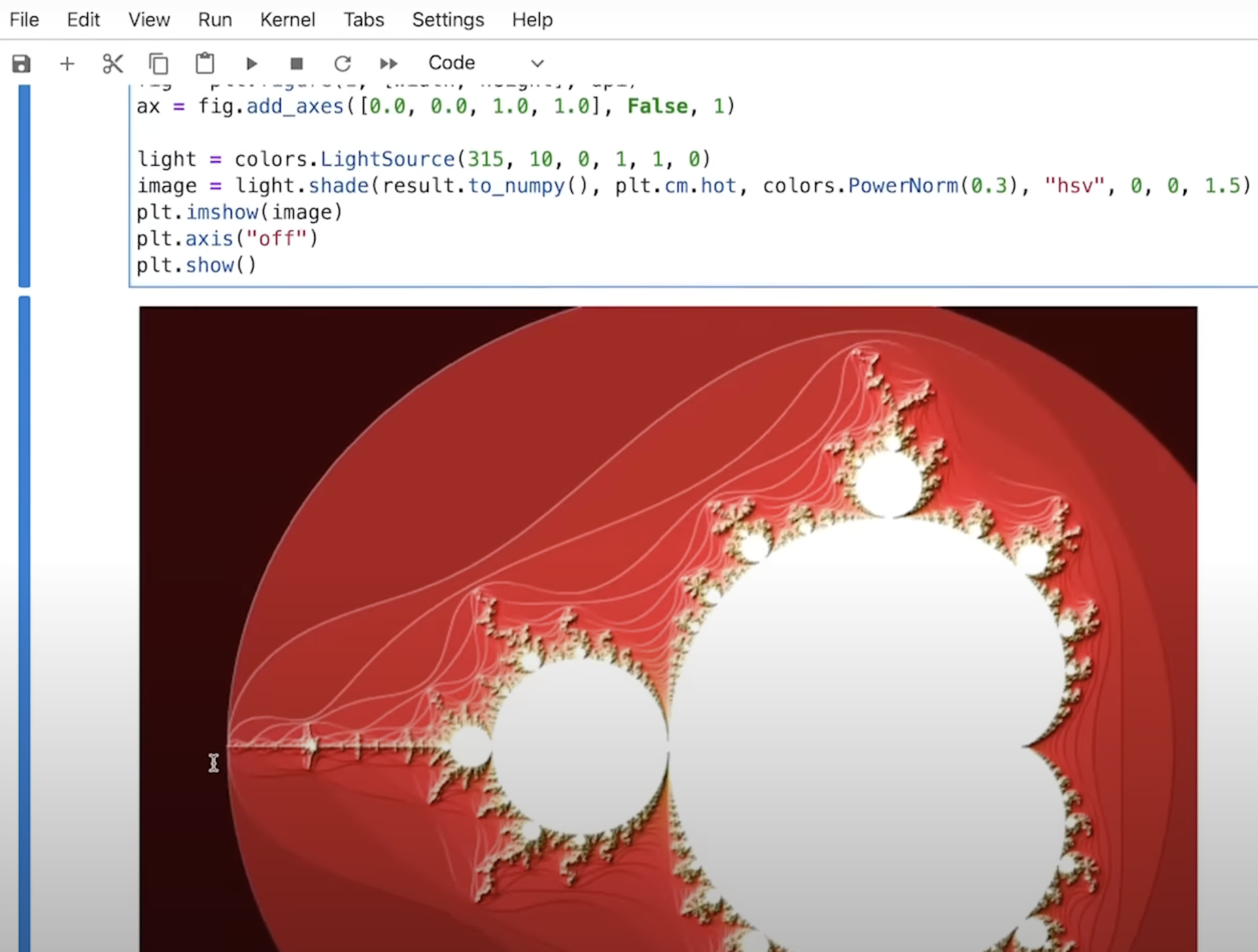
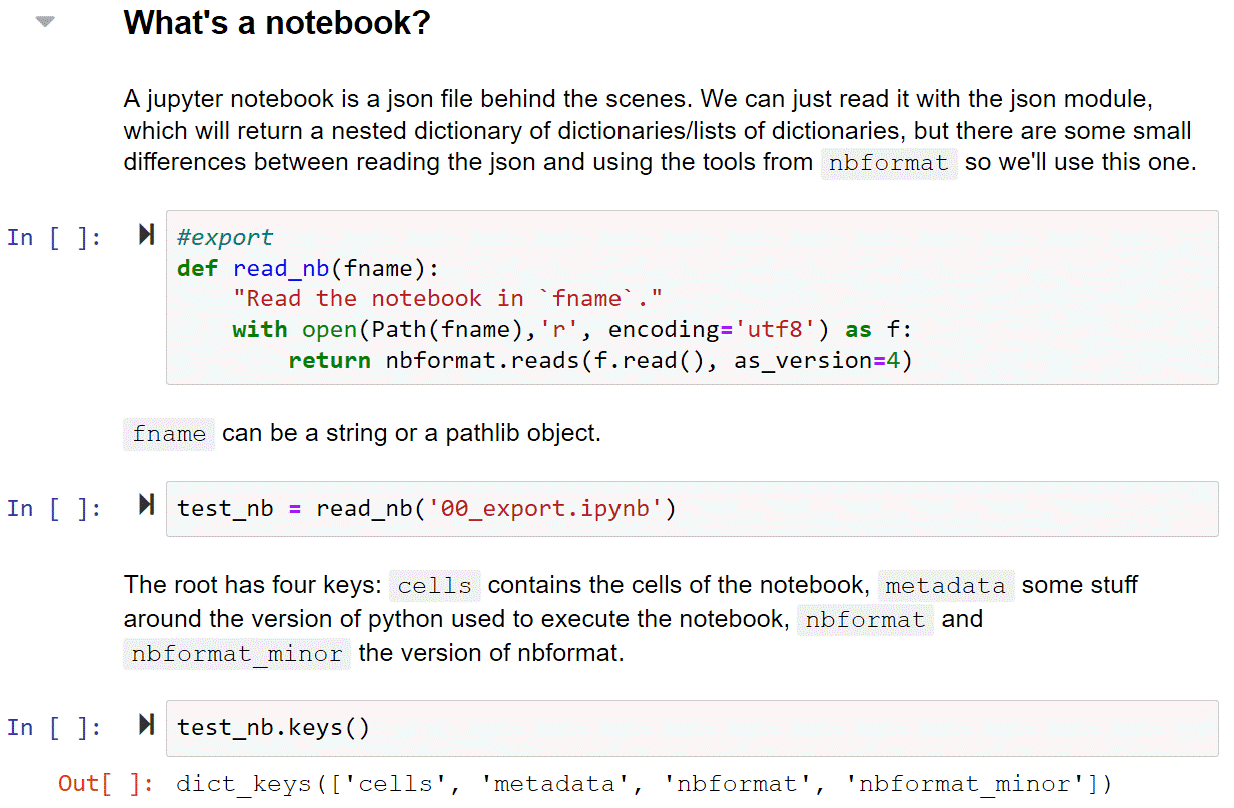
The fourth post is just for folks that want to include code in their blog posts. If you’re including code, you’ll probably want to show the results of that code too, whether they be text, tables, charts, or something else. The easiest way to create content like that is Jupyter Notebooks. I’ll show you how to easily create great looking blog posts from your notebooks, and include them in your fast_template blog.
Jupyter Notebooks is a great environment for creating “code heavy” blog posts. Maybe you didn’t even plan to write a blog post, but you’ve done some interesting experiments in a notebook and you realize afterwards that you have results worth sharing. Either way, you’ll want some way to get your notebook onto your blog.
fast_template and nbdev are set up to handle Jupyter Notebooks nicely. Jupyter Notebooks and GitHub Pages already have some support for exporting notebooks to markdown; but I suggest you use fast_template and nbdev, with the process described in this post, because otherwise you won’t get useful features such as:
Support for pasting images directly into your notebook
Input and output cells clearly displayed with appropriate styles
The ability to hide some cells from the markdown output.
This whole post was created using this method. You can see the source notebook here.
Writing your notebook
Your markdown cells, code cells, and all outputs will appear in your exported blog post. The only thing that won’t be shown is interactive outputs (e.g. ipywidgets, bokeh plots, etc), or cells you explicitly hide using the #hide marker discussed below.
When you write your notebook, just write whatever you want your audience to see. Since most writing platforms make it much harder to include code and outputs, many of us are in a habit of including less real examples than we should. So try to get into a new habit of including lots of examples as you write.
Often you’ll want to hide boilerplate such as import statements. Add #hide to the top of any cell to make it not show up in output.
Jupyter displays the result of the last line of a cell, so there’s no need to include print(). (And including extra code that isn’t needed means there’s more cognitive overhead for the reader; so don’t include code that you don’t really need!)
1+1
2
It works not just for text, but also for images. For instance, here’s an example of the flip_lr data augmentation using fastai.vision:
You can also paste images, such as screenshots, directly into a markdown cell in Jupyter. This creates a file embedded in the notebook that Jupyter calls an “attachment”. Or you can use Markdown to refer to an image on the internet by its URL.
Exporting to markdown
Before you export to markdown, you first need to make sure your notebook is saved, so press s or click File➡Save. Then close the browser tab with the open notebook. This is important, because when we export to markdown any attachments will be exported to files, and the notebook will be updated to refer to those external files. Therefore, the notebook itself will change; if you leave it open, you may accidentally end up overwriting the updated notebook.
You’ll need nbdev installed; if you haven’t already, then install it with:
pip install nbdev
Then, in your terminal, cd to the folder containing your notebook, and type (assuming your notebook is called name.ipynb):
nbdev_nb2md name.ipynb
You’ll see that a file name.md and folder name_files have been created (where “name” is replaced by your notebook file name). One problem is that the markdown exporter assumes your images will be in name_files, but on your blog they’ll be in /images/name_files. So we need to do a search and replace to fix this in the markdown file. We can do this automatically with python. Create a file called upd_md.py with the following contents:
Then, in the terminal, run (assuming that upd_md.py and your markdown doc are in the same folder):
python upd_md.py name.md
This will modify your markdown doc inplace, so it will have the correct /images/ prefix on each image reference.
Finally, copy name_files to the images folder in your blog repo, and name.md to your _posts folder, and rename name.md to have the required YEAR-MONTH-DAY-name.md format. Commit and push this to GitHub, and you should see your post!
One of the most useful tools for blogging is screenshots. You can use a screenshot for all kinds of things. I find it particularly useful for including stuff that I find on the Internet. For instance, did you know that the NY Times reported in 1969 that there were folks who thought the moon landing was faked? A screenshot of the NY Times website tells the story:
Generally, the most useful kind of screenshot is where you select a region of your screen which you wish to include. To do this on Windows, press Windows-Shift-S, then drag over the area you wish to create an image of; on Mac, it’s Command-Shift-4.
By combining this with writing blogs in Microsoft Word or Google Docs it makes it particularly easy to include pictures in your posts. You don’t have to worry about finding special HTML syntax to embed a tweet, or downloading and resizing an appropriate sized image to include some photo that you found, or any other special approach for different kinds of content. Anything that appears on the screen, you can take a screenshot, so you can put it in your post!
The problem of giant screenshots
Unfortunately, you might notice that when you paste your screenshot into your blog post, and then publish it, that it appears way too big, and not as sharp as you would like. For instance, here is the “commit” example image from my blog post about using Github Desktop:
This is about twice as big as it actually appeared on my screen, and not nearly as sharp. To fix it, have a look at the markdown for the image:

And replace it instead with this special syntax (note that you don’t need to include the ‘/images/’ prefix in this form):
{% include screenshot url="gitblog/commit.png" %}
This appears the correct size, and with the same sharpness that it had on my screen (assuming you have a high-resolution screen too):
You can do this quite quickly by using your editor’s search and replace feature to replace \!\[\](/images/ with the appropriate syntax, and then replace the end of the lines with ‘ %}’ manually. (Of course, if you know how to use regular expressions in your editor, you can do it in one step!)
So, what’s going on here? Frankly, it doesn’t matter in the slightest. Feel free to stop reading right now and go and to something more interesting. But, if you have nothing better to do, let’s talk a little bit about the arcane world of high-resolution displays and web browsers. (Many thanks to Ross Wightman for getting me on the right track to figuring this out!)
The basic issue is that your web browser does not define a “pixel” as… well, as a pixel. It actually defines it as 1/96 of an inch. The reason for this is that for a long time computer displays were 96 dots per inch. When screens started getting higher resolutions, as we moved from CRT to LCD displays, this caused a problem: things started looking too small. When a designer created something that was 96 pixels across, they had expected it to be 1 inch wide. But on a 200 dpi display it’s less than half an inch wide! So, the powers that be decided that the definition of a pixel in a web browser would remain as 1/96 of an inch, regardless of the actual size of pixels on your monitor.
But when I take a screenshot it actually has a specific number of pixels in it. When I then insert it into a webpage, my web browser decides to make each of those pixels take up 1/96 of an inch. And so now I have a giant image! There isn’t really one great way to fix this. Web forums are full of discussions amongst designers on various workarounds. But it turns out there’s a neat hack that generally works pretty well. Here’s what the HTML for an image normally looks like:
<img src="image.png">
We can replace that with this slight variation:
<img srcset="image.png 2w" sizes="1px">
The ‘2w’ and ‘1px’ tells the browser how we want to map the width of an image to pixels. All that matters is the ratio between these numbers, which in this case is 2. That means that the image will be scaled down by a factor of 2, and it will be done in a way that fully uses the viewers high-resolution display (if they have one).
This is a somewhat recent addition to web browsers, so if we also want this to work on people using older software, then we should include both the new and old approaches that we have seen, like so:
It would be annoying to have to write that out by hand every time we wanted an image, but we can take advantage of something called Jekyll, which is the underlying templating approach that Github Pages uses. We can create our own template, that is, a small piece of text where we can fill in parameters later, like so:
You’ve already seen how to create your own hosted blog, the easy, free, open way, with the help of fast_template. Now I’ll show you how to make life even easier, by syncing your blog with your computer, and writing posts with MS Word or Google Docs (especially useful if you’re including lots of images in your posts).
Synchronizing GitHub and your computer
There’s lots of reasons you might want to copy your blog content from GitHub to your computer. Perhaps you want to read or edit your posts offline. Or maybe you’d like a backup in case something happens to your GitHub repository.
GitHub does more than just let you copy your repository to your computer; it lets you synchronize it with your computer. So, you can make changes on GitHub, and they’ll copy over to your computer, and you can make changes on your computer, and they’ll copy over to GitHub. You can even let other people access and modify your blog, and their changes and your changes will be automatically combined together next time you sync.
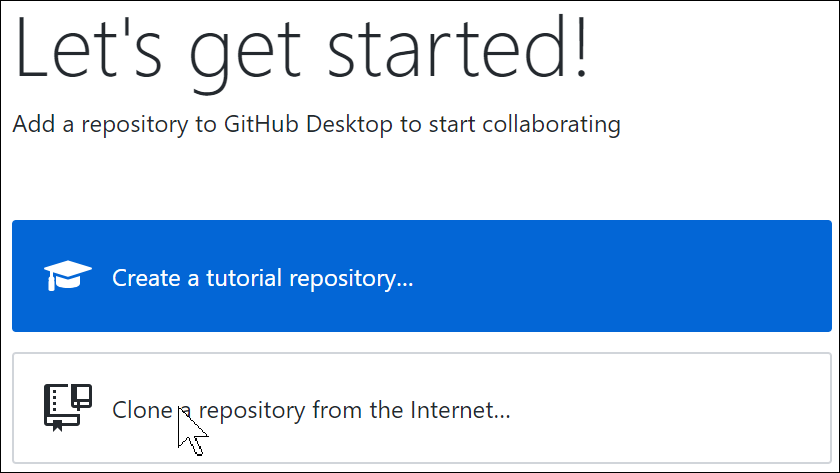
To make this work, you have to install an application called GitHub Desktop to your computer. It runs on Mac, Windows, and Linux. Follow the directions at the link to install it, then when you run it it’ll ask you to login to GitHub, and then to select your repository to sync; click “Clone a repository from the Internet”.
Once GitHub has finished syncing your repo, you’ll be able to click “View the files of your repository in Finder” (or Explorer), and you’ll see the local copy of your blog! Try editing one of the files on your computer. Then return to GitHub Desktop, and you’ll see the “Sync” button is waiting for you to press it. When you click it, your changes will be copied over to GitHub, where you’ll see them reflected on the web site.
Writing with Microsoft Word or Google Docs
One place this is particularly handy is for creating posts with lots of images, especially screen shots that you copy with your computer. I find these much easier to create in Microsoft Word, since I can paste my images directly into the document (Google Docs provides similar functionality). You can convert your Microsoft Word documents into markdown blog posts; in fact, I’m using it right now!
To do so, create your Word doc in the usual way. For headings, be sure to choose “heading 1”, “heading 2”, etc from the style ribbon—don’t manually format them. (A shortcut for “heading 1” is to press Ctrl-Alt-1, and so forth for each heading level).
When you want to insert an image, simply paste it directly into your document, or drag a file into your document. (On Windows, press Windows-Shift-S to create a screenshot, then drag over the area you wish to create an image of. On Mac, press Command-Shift-4.)
Once you’ve finished, save your work as usual, then we’ll need to convert it to markdown format. To do this, we use a program called Pandoc. Download and install Pandoc (by double clicking the file you download from the Pandoc website). Then navigate in Finder or Explorer to where you saved your Word doc and open a command line (Terminal, Command Prompt, or PowerShell) there. To do so:
In Windows: hold down Alt and press f to open the File menu, then click ‘Open Command Prompt’ or ‘Open Windows PowerShell’
In MacOS: this requires an extra setup step to make this work. Follow these instructions and you’ll be up and running!
Now paste the following command into the command line window:
Replace “name” with the name of your file. To paste into the command line window:
In Windows: press Ctrl-v or right-click
In MacOS: press Command-Shift-v or middle-click.
After you press Enter, you’ll find you have a new file (name.md) containing your blog in markdown format, and a new folder called “media” containing a folder with the name of your doc. In that folder, you’ll find all your images. Use Explorer or Finder to move that folder into your blog repo’s images folder, and to move the markdown file name.md into your _posts folder.
You just have one more step. Open the markdown file in an editor or word processor, and do a search and replace (Ctrl-H in Microsoft Word), searching for “name/media”, and replace with “/images/name” (be careful to type the forward slash characters exactly as you see them). The lines containing your images should now look like this:

You can now commit your changes (that is, save them to the repo) by swiching to GitHub Desktop, filling in a summary of your changes in the bottom left corner, and clicking Commit to master. Finally, click Push origin at the top right of the window, to send your changes to the GitHub server.
Instead of going to the command line and pasting the pandoc line every time you want to convert a file, there’s an easier way. If you’re on Windows, create a text file with the following exact contents:
Save the text file with the name “pandocblog.bat”. Now you can drag any MS Word file onto the pandocblog.bat icon, and it will convert it to markdown right away! (If you’re a Mac user and know how to do something similar for MacOS, please send me the details and I’ll add them to this post.)
Using your own domain name
One thing that can make your blog appear more professional is to use your own domain name, rather than a subdomain of github.io. This costs around $12/year, depending on the top-level domain you choose. To set this up, first go to www.domains.google, search for the domain name you want to register, and click “Get it”. If you get back the message that your domain is already registered, click on “All endings” to see alternative top level domains that are available, along with their prices.
Once you’ve found a domain you like, add it to your shopping basket and check out. You now need to do two things:
Tell GitHub Pages to use this custom domain
Tell Google Domains to direct connections to this custom domain to GitHub Pages.
There’s a great tutorial available written by Trent Yang, on how to do this, so rather than repeat his excellent work, I’ll just suggest you head over there to complete this process: How to setup google domain for github pages.